Cross sections form
Using the Cross Sections form
On the Cross Sections form, opened via the cross sections drop-down list  in the toolbar of the 3D View, you can create projection planes onto which intersections with 3D grids, 2D surfaces, and 1D (poly)lines are drawn.
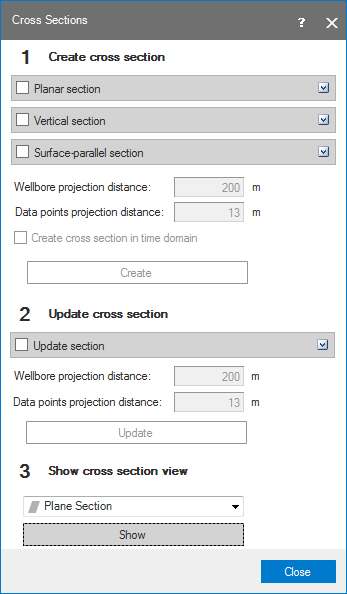
Cross Sections form click to enlarge
There are three types of cross sections. Each type has it's own features regarding the number and shape of the panes, and rotation and moving options:
Vertical section

- Contains one or more flat panes (Arbitrary Cross Section falls within this category)
- Panes can have only 0 degrees inclination (i.e. vertical)
- Cannot be rotated
- Can be graphically adjusted (not moved)
Planar section 
- Contains one flat pane
- Pane can have any inclination
- Can be rotated
- Can be moved
Surface-parallel section

- Contains one or more non-flat panes (panes follow geometry of the reference tri-mesh)
- Cannot be rotated
- Can be moved
You can use the form to create and update cross sections, and to select a cross section for the dedicated cross section view.
To create a cross section:
-
If you want to create a new cross section, you can do so in the Create cross section group at the top of the form. Depending on the type of cross section, you can use existing surfaces (tri-meshes) or wells to create the cross sections.
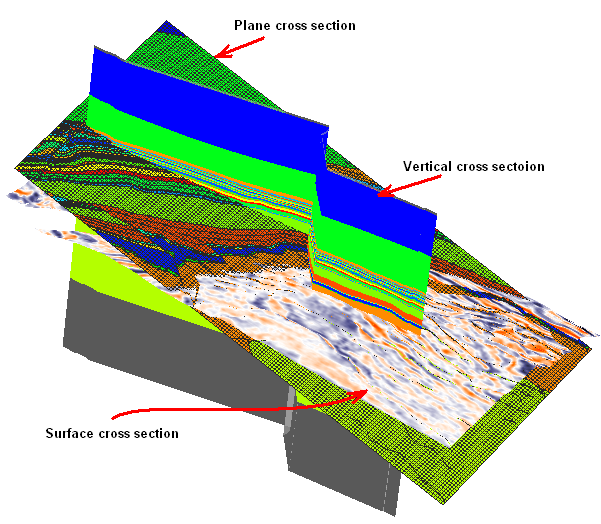

Three cross section types click to enlarge
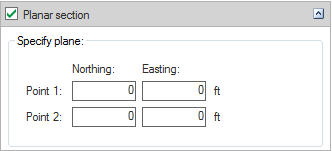
Planar section click to enlarge
Planar section A planar section is a flat display canvas extending throughout the 3D space as defined by the horizontal and vertical extremes of all objects in the solution. Planar sections can be tilted and rotated into any orientation.
Two points determine a line through which plane section will go. Initially the generated pane is vertical.

Vertical section click to enlarge
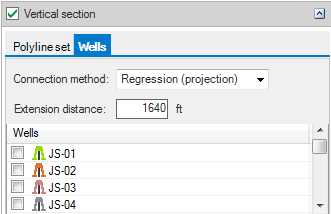
Vertical section This option on the form creates a vertical section based on existing data such as surfaces or well data. Click the Polyline Set tab, then select the required polyline set to generate a section based on the polyline set. Click the Wells tab to generate a section through wells. Select the wells from the list.
Specify the Connection method:
- Regression (projection) connects wells in the order of their projection on a regression line. The regression line is calculated using the lateral coordinates of the wells.
- The Genetic (shortest way) method tries to connect wells in such a way that the length of the section trajectory is minimal.
- The One VCS for each wellbore method creates separate sections for each well. This method is most appropriate for wells in a ‘spider’ geometry, e.g. deviated wells drilled from a shared surface location, such as an offshore platform.
Extension distance is the parameter controlling the extension of well sections beyond the start and end locations of the wellbore trajectory.
For a single well you can also create a cross section with the option Create vertical arbitrary section in the well’s right-click context menu.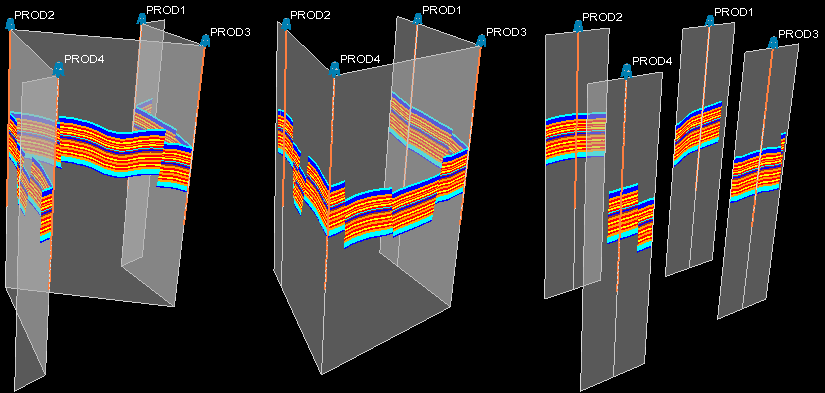
Example of the different construction methods click to enlarge

Surface-parallel section click to enlarge
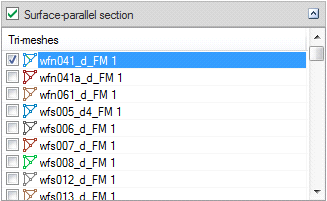
Surface-parallel section A surface-parallel section uses existing tri-meshes to create the canvasses. Surface-parallel sections can be displaced/moved as phantom surfaces along predefined directions, vertical for horizon slices, horizontal along dip for fault slices.
You can use surface-parallel sections for seismic interpretation QC of fault-fault intersections by draping a seismic attribute on the fault plane, and then moving the draped fault as a phantom surface with respect to another fault. This way you can validate the fault interpretation along the full length of the fault-fault intersection. For details, see Interpretation QC of fault-fault intersections.Select the required tri-mesh in order to generate a surface section.
Wellbore projection distance This parameter defines the half-width of a 'corridor' around planar and vertical cross sections. Wellbores will be shown projected on the cross section view if they are partially or completely located inside the corridor.
Data points projection distance The ‘Data points projection distance’ defines the half-width of a ‘corridor’ around planar and vertical cross sections. Data objects like polyline sets, point sets or markers will be shown projected on the cross section view if they are partially or completely located inside the corridor. See image below.
Create cross section in time domain Check this option if you want to generate a section in time domain.
Create Click to generate the specified section.
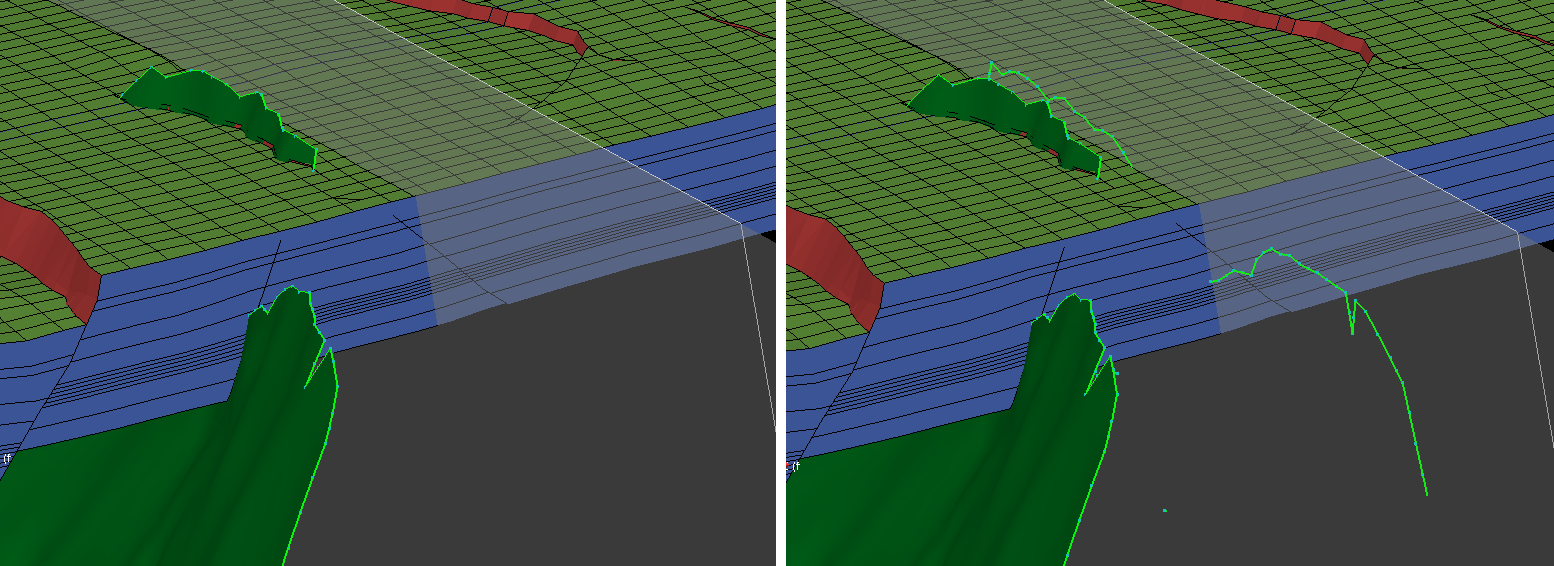
Polyline set of fault boundary projected on cross section (right) click to enlarge
-
Update cross section. With the settings in this step you can edit and update an existing cross section. Check the Update section checkbox.
Cross sections Select the section that must be updated.
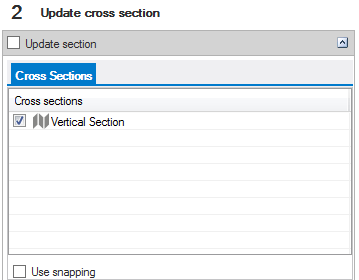

Select section to update click to enlarge
Snapping is only available for vertical cross sections.You can update a cross section by specifying a new Projection distance (see below). When a vertical cross section is selected the Use snapping option is activated. See below.
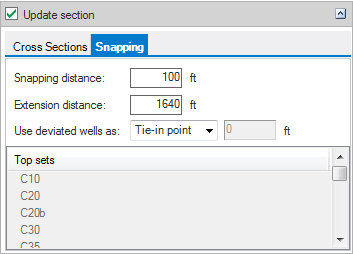

Snapping click to enlarge
Snapping Snapping updates the cross section and snaps it to selected positions on the well trajectories of the original well and additional wells.
Snapping distance defines the half-width of a corridor around an existing cross section. For wells to be included in the snapping process, they must be located in the corridor.
Extension distance is the distance by which well-specific panels will be extended.
Use deviated wells as Different methods are available to define how deviated wells are included in the resulting cross section:
Tie-in point Cross section is snapped to tie-in points of wells within snapping distance.
Mid borehole Cross section is snapped to the mid-point of well trajectories within snapping distance.
Fixed TVD Cross section is snapped to a user-specified depth value along the boreholes within snapping distance.
Marker Cross section is snapped to the selected marker in wells within snapping distance.
Entire borehole Cross section will follow the trajectories of wells within snapping distance.
Wellbore projection distance This distance defines the corridor for planar and vertical cross sections. You can also change this parameter in the JewelExplorer; when edited it becomes immediately effective in the selected cross section.
Data points projection distance This distance defines the corridor for planar and vertical cross sections. You can also change this parameter in the JewelExplorer; when edited it becomes immediately effective in the selected cross section.
Update Click to update the selected section.
-
Show cross section view.
Cross section list Select the cross section for which a dedicated 2D view must be generated. Only planar and vertical arbitrary sections can be selected.
Show Click to create the corresponding cross section view.